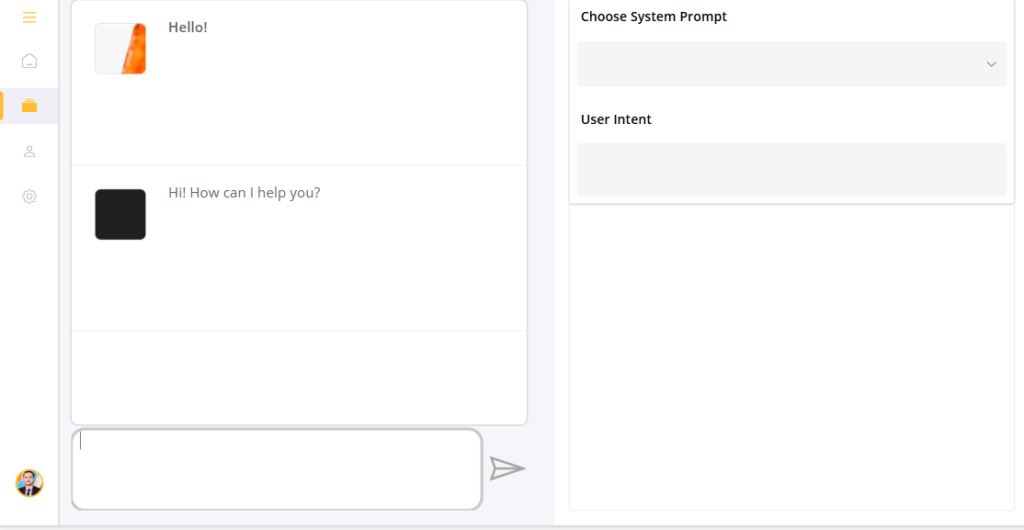
Finding the right document in large SharePoint repositories can often be challenging and time-consuming, particularly when working with unstructured data. This session will explore how AI-powered search capabilities can significantly enhance document retrieval within Power Apps and SharePoint, making the process more efficient and intuitive.
In this blog, we will take a deep dive into Azure AI Services, Power Automate, and the SharePoint Search API, showcasing how these technologies enable intelligent file searches that go beyond traditional metadata filtering.
Recently, I had a requirement to build an application that could identify the right file stored in a SharePoint location. While SharePoint offers a solid built-in search capability, I found that it also comes with several limitations when it comes to delivering right and context-aware results. Some of the gaps listed below.
- Indexing Gaps – SharePoint skips or incompletely indexes some formats (ZIPs, embedded docs, scanned PDFs), and limits full-text indexing to the first few MB, so large or complex files may be partially searchable only.
- Metadata Mapping Issues – Custom fields aren’t searchable until manually mapped to managed properties; unmapped metadata also won’t appear in filters or refiners.
- Weak Relevance Ranking – Keyword-based search often misranks results; lacks semantic understanding (e.g., “lawyer” ≠ “attorney”) and undervalues document context.
- Performance & Freshness Delays – Crawls can lag minutes → hours; misconfigurations cause stale indexes where updated or new files don’t appear.
- User Experience Friction – Search syntax feels technical, irrelevant hits overwhelm users, and “Classic vs Modern” search trade-offs (customizability vs UX) confuse teams.
- Security & Advanced Query Limits – Permission-based trimming hides valid files, while search lacks flexible wildcards and intuitive multi-condition filters.
To address these key challenges, I decided to build a simple Power Apps solution that could perform semantic search across files stored in SharePoint and return more relevant, context-driven results. Instead of relying solely on keyword matching, the goal was to create a smarter search experience that understands intent and surfaces the right information faster.
I had explored couple of options to address this challange.
- Azure AI builder: It’s inbuilt AI service with M365 stack. You can find in Power Automate in AI Hub section. It enables organizations to add intelligence into business applications without building complex machine learning models from scratch. It has Limited flexibility for highly customized AI scenarios.Best suited for predefined models rather than advanced semantic search.
- Copilot Studio : Copilot Studio was another good option for delivering conversational experiences and enabling natural-language interactions with enterprise data. However, licensing costs can be a consideration, and its effectiveness may decrease when dealing with large or highly complex files especially documents containing embedded content or complex structures where retrieval and interpretation can become more challenging.
- Power Automate Flow using Open AI: It is highly flexible and customizable, but it requires solid technical understanding to design and maintain effectively. This approach works particularly well when HTTP connectors are permitted between the Microsoft 365 and Azure environments, though some organizations may face limitations due to Data Loss Prevention (DLP) policies and governance restrictions.
I have choose third approach to do my solution.
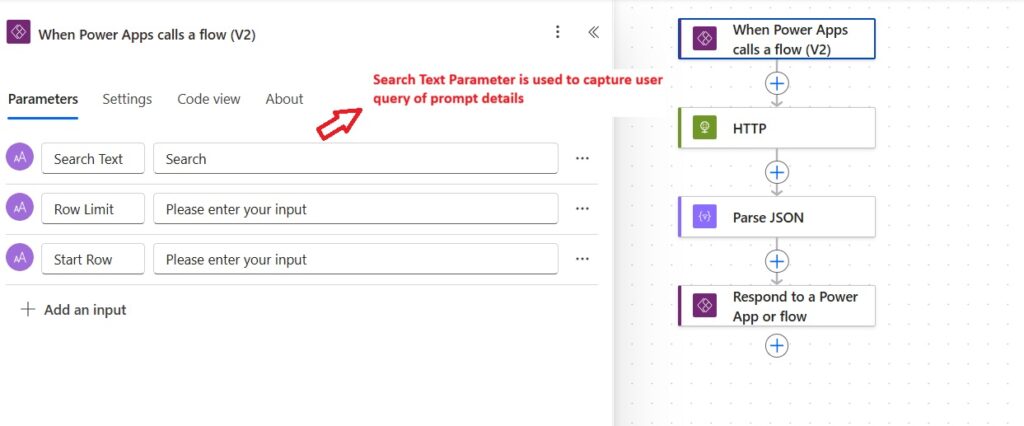
Step 1 : Create a Power Automate cloud flow that receives requests from a Power App and returns semantic search results to the Power App solution to enable chat functionality.
Add power apps connector (When Power Apps call a flow (V2)) and provide three input parameters:
- Search Text – captures the user’s query or prompt.
- Row Limit and Start Row – used to control pagination by limiting and offsetting the result set returned to the Power App.
Step 2: In the next step, use http connector which will call Azure Open AI api. In my case, I have already created the Azure Open AI.
Provide the Azure Open AI, API end points, api -key as headers and content type details.
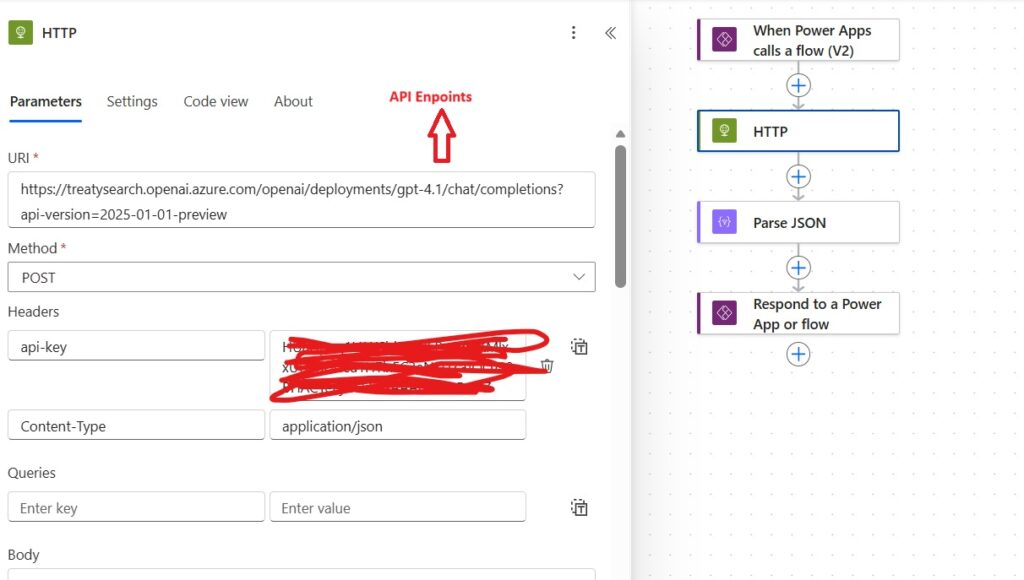
body: In the body section, you need to define roles such as (system, user) and provide system prompt.
User defined prompt will be received from Power App solution in form of search text parameters.
data_sources: If you have any RAG model, it can be used as data_sources by providing few parameters (such as api end point, api-key, name etc).
{
  "messages": [
    {
      "role": "system",
      "content": "Role: You are an Intelligent Document Assistant. Your purpose is to help users search, summarize, and extract information from contract-related documents stored in the SharePoint Documents library or designated storage locations. \n\nYour output should be in HTML format. "
    },
    {
      "role": "user",
      "content": @{triggerBody()?['text']}
    }
  ],
  "data_sources": [
    {
      "type": "azure_search",
      "parameters": {
        "endpoint": "https://searchdocs.search.windows.net",
        "index_name": "multimodal-rag-XXX",
        "authentication": {
          "type": "api_key",
          "key": ""
        }
      }
    }
  ],
  "temperature": 0,
  "top_p": 5,
  "max_tokens": 1000,
  "stop": null
}
Step 3: Parse the search results using body parameter.
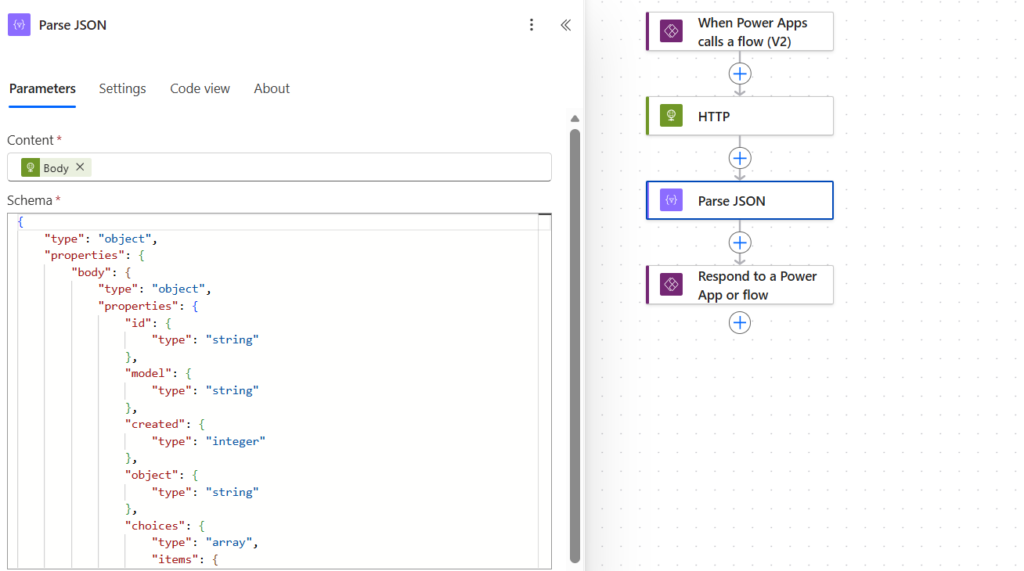
Step 4 : Return the parse results to the power app solution with parameter searchReasults.
body('Parse_JSON')?['choices']?[0]?['message']?['content']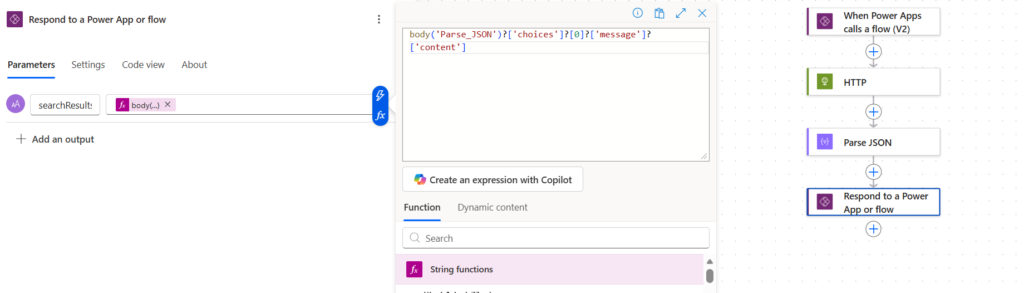
Step 5: Display the results to Power app solution.